

Table of contents
Key takeaways
- TidyHQ Events has a built-in ticket scanner in each event's Scanning tab that works in a web browser, with no separate app to install.
- Admins can give volunteers a scanning link or QR code that opens the scanner on the volunteer's own phone without giving them admin access to TidyHQ.
- Volunteer scanning access can be revoked at any time, which immediately stops the current link from working.
- Each ticket in an attendee's confirmation PDF has its own QR code, and the scanner shows an Already Scanned alert with the original scan time if the same ticket is presented twice.
- Scan types let a club track different check-in points or redemptions separately within one event, and a Stats tab shows tickets sold, tickets scanned and the scan rate.
Gate duty at a club event usually runs on a printed attendee list, a biro and a volunteer squinting at surnames while the queue backs up past the canteen. Someone says they bought online. Their name isn’t on the list because their partner bought it. You wave them through, and you’ll never know how many people actually came.
In May, ticket scanning became part of TidyHQ Events. The volunteer on the gate needs a smartphone with a camera and an internet connection, and that’s the whole kit.
How do I scan tickets at a club event?
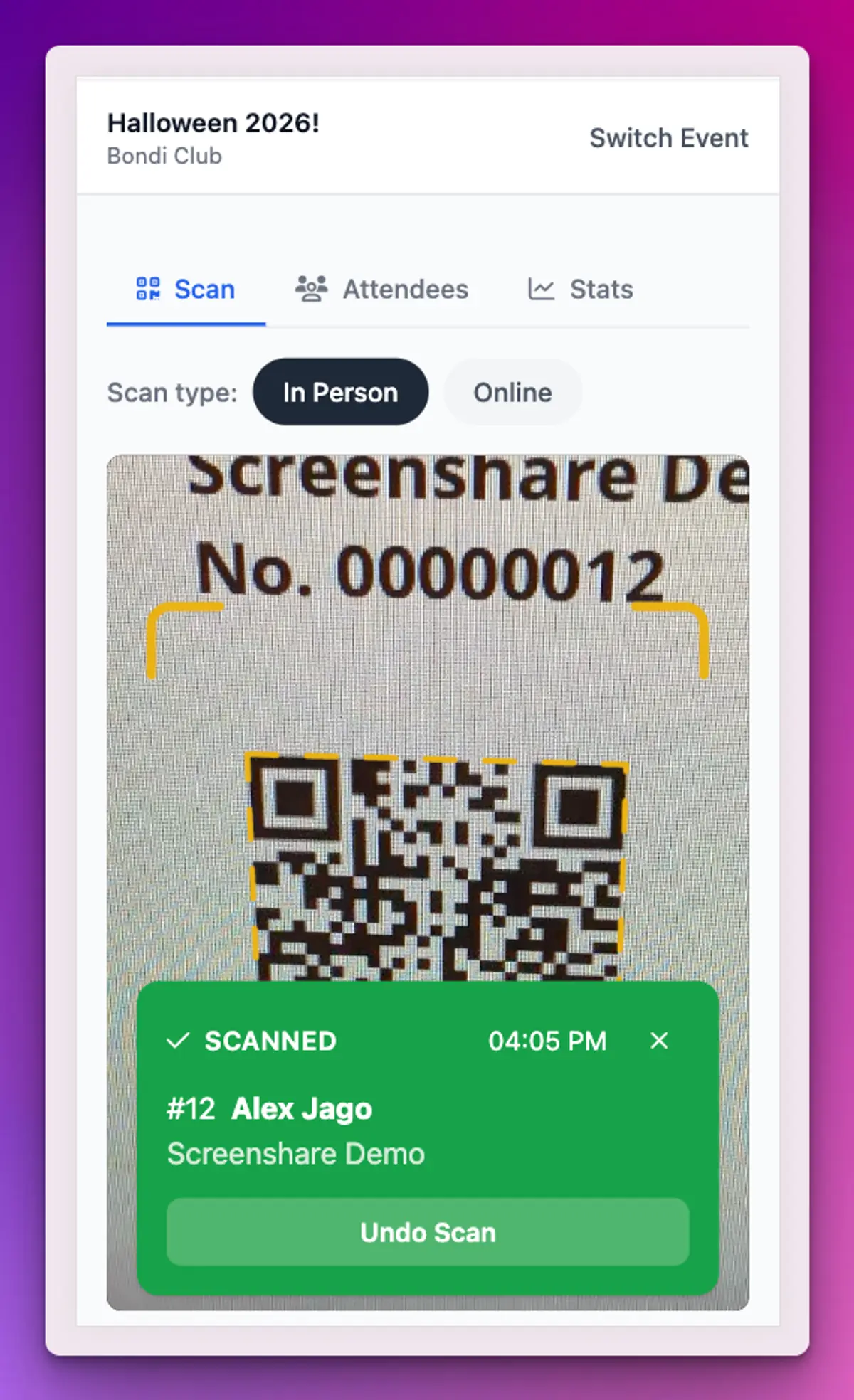
Open the event, go to the Scanning tab, allow your browser to use the camera, and point it at an attendee’s ticket QR code. TidyHQ recognises the code and records the scan. There’s no app to download, it runs in the browser.
Every ticket already has its own QR code. When someone buys tickets, their confirmation email includes a PDF with each ticket in the order, and each one has a unique code. People can show it on their phone or bring it printed, and the scanner reads either.
Can a volunteer scan tickets without admin access?
Yes, and this is the part that matters most. You can give a volunteer their own scanning link, and it opens the scanner on their phone without making them an admin. They get the scanner, not the rest of your TidyHQ account.
That has been the reason plenty of clubs stayed with the paper list. Handing the under-16s’ parent helper a full admin login so they could tick names off at the gate was never a great idea.
In the Volunteer Access section of the Scanning tab you can:
- click Show QR Code, and the volunteer scans it with their phone to open the scanner
- click Copy Link, and send the scanner link by text or email
- click Revoke Access, which stops the current link working straight away
Revoking is worth doing after the event, or the moment a phone goes missing. A new link is created next time you open the screen.
What happens if someone shows the same ticket twice?
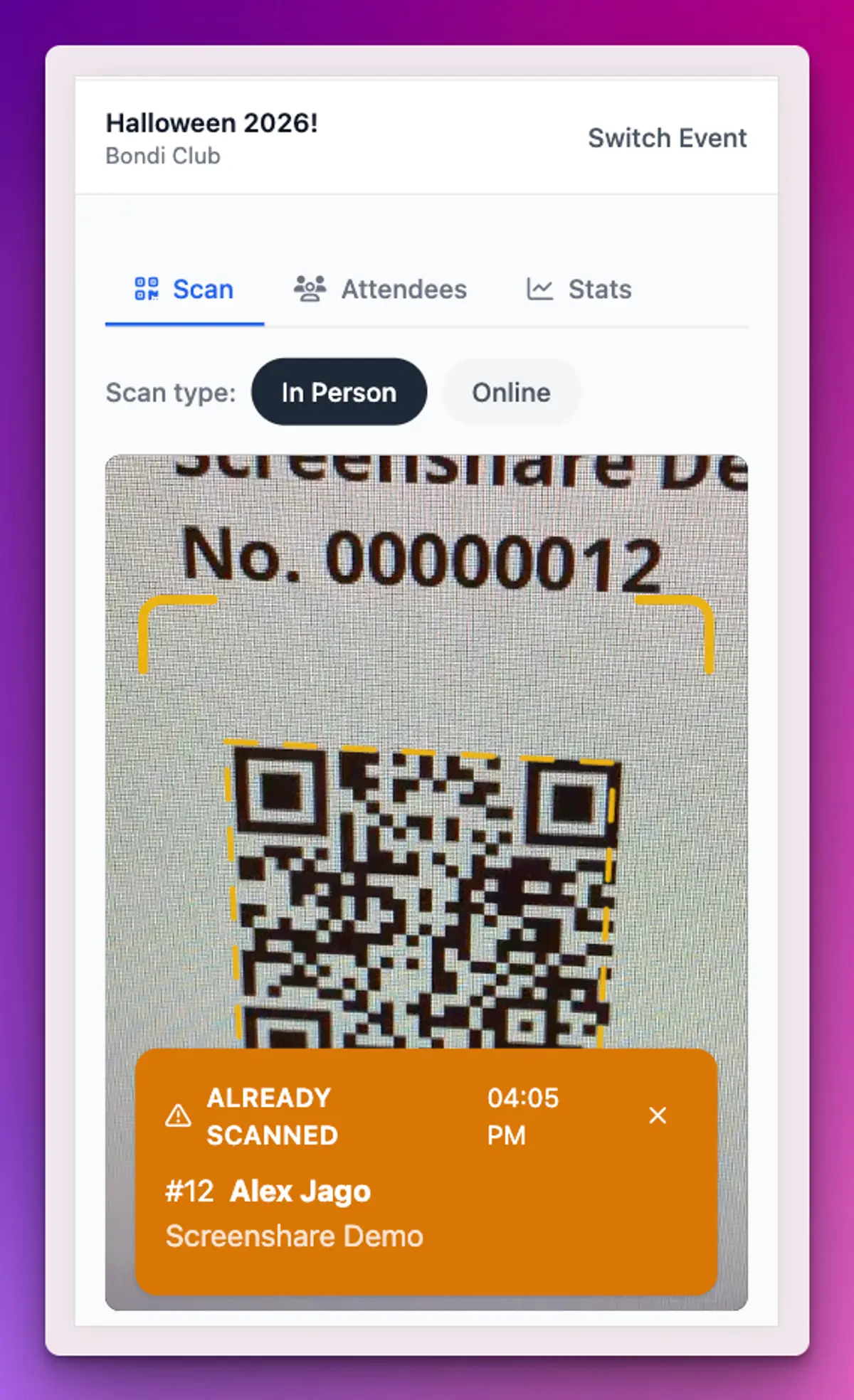
The scanner shows an amber Already Scanned alert, with the attendee’s name and the time of the first scan. That makes a screenshot passed around the car park easy to spot, and it also saves an argument when someone genuinely went back to the car for a jumper and you can see they came through at 6:42.
If you scan the wrong ticket, the green confirmation has an Undo Scan button.
What are scan types for?
Scan types let you record different kinds of check-in separately within one event. The default is fine for most club events: one gate, one scan. But if your presentation night has a main door and a separate drinks voucher, or your carnival has two entry points, you can add a scan type for each and switch between them with the buttons at the top of the scanner.
You add a scan type by typing a name and clicking Add. The default one can be renamed but not deleted.
Can I check people in without scanning?
Yes. The Attendees tab has a Scan button on each ticket row, so a volunteer at a desk can check people in by name. It’s useful when someone’s phone is flat, or for a staffed desk where holding up a camera isn’t practical. There’s an Undo there too.
How to set it up
- Go to Events and open an event that has tickets.
- Click the Scanning tab and allow camera access when your browser asks.
- If you want separate check-in points, add scan types.
- For volunteers, go to Volunteer Access and use Show QR Code or Copy Link.
- On the day, pick the scan type and start scanning.
If the camera doesn’t start, check the browser has permission to use it (usually in the address bar or site settings) and refresh the page. The full walkthrough is in the help centre article on scanning tickets at your event.
Watching the queue go down
The Stats tab on the event shows Tickets Sold, how many have been Scanned under the selected scan type, and the Scan Rate as a percentage. Below that are two charts, ticket sales over time and scan activity over time. Tick Auto-refresh during the event and it keeps itself current.
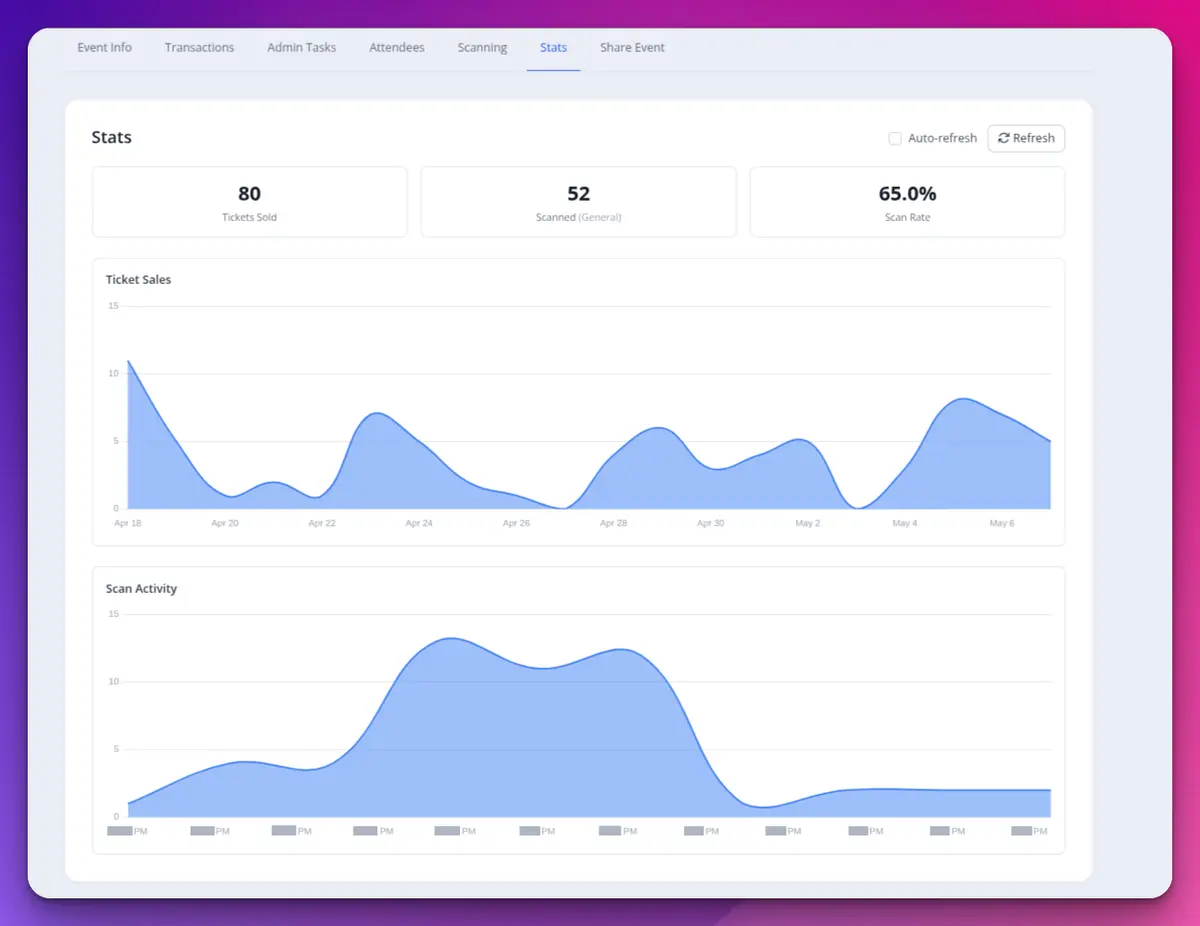
After the event, that scan rate is a real attendance number rather than a guess, which is handy when the committee asks whether the trivia night is worth running again.
Limits and caveats
Scanning only works for events that have tickets, including free ones, because the scanner reads ticket codes. Phones need a working camera and a data connection, so if your ground has one bar of signal behind the grandstand, test it before the day. And a volunteer link is a link: anyone who has it can scan until you revoke it.
The admin side of Events also got a fresh coat of paint in the same release. Other May changes are on the changelog.
Header image: Oval, rectangle, square, curve by Kazimir Malevich, via WikiArt

Don't miss these

Sharing policies and files from a peak body to every affiliated club
Peak bodies can share Storage folders with their affiliated clubs, read-only. Folders can now hold links to documents hosted elsewhere, and clubs see shared folders in their sidebar even if they have never added the Storage app.

The new Xero integration splits Stripe payouts by category
Our rebuilt Xero integration is now self-serve on the Pro plan. Each Stripe payout lands in Xero already split across your accounts, so the treasurer can see how much was memberships and how much was the trivia night.

Filter and sort your club's transactions, for the treasurer
Transactions in Finances now has proper filters and sorting. Find every unreconciled canteen deposit, one family's payments or last month's refunds, and export exactly that list to CSV.