

Table of contents
Key takeaways
- In June 2026 TidyHQ rebuilt the Discussion tab on Project tasks with a rich-text editor supporting bold, italics, underline, quotes, inline code and bulleted or numbered lists, including Markdown shortcuts.
- TidyHQ project discussions support @mentions of members and roles, and anyone mentioned is notified in-app and by email with a quote of the message.
- Images and videos up to 10 MB each can be attached to a TidyHQ project discussion by clicking the paperclip, dragging onto the composer or pasting from the clipboard.
- Each message in a TidyHQ project discussion has a copy-link button that opens the discussion scrolled to that message and highlights it.
- Projects, including task discussions, are part of TidyConnect and are available to peak bodies and their connected organisations.
A state body is running a project to collect updated safeguarding contacts from forty affiliated clubs. Halfway through, a club’s secretary sends a question that only the state’s compliance officer can answer. In the old Discussion tab that meant typing a note, then emailing the compliance officer separately to say “have a look at task 14”, then emailing the screenshot because the note couldn’t hold one. Three places, one question.
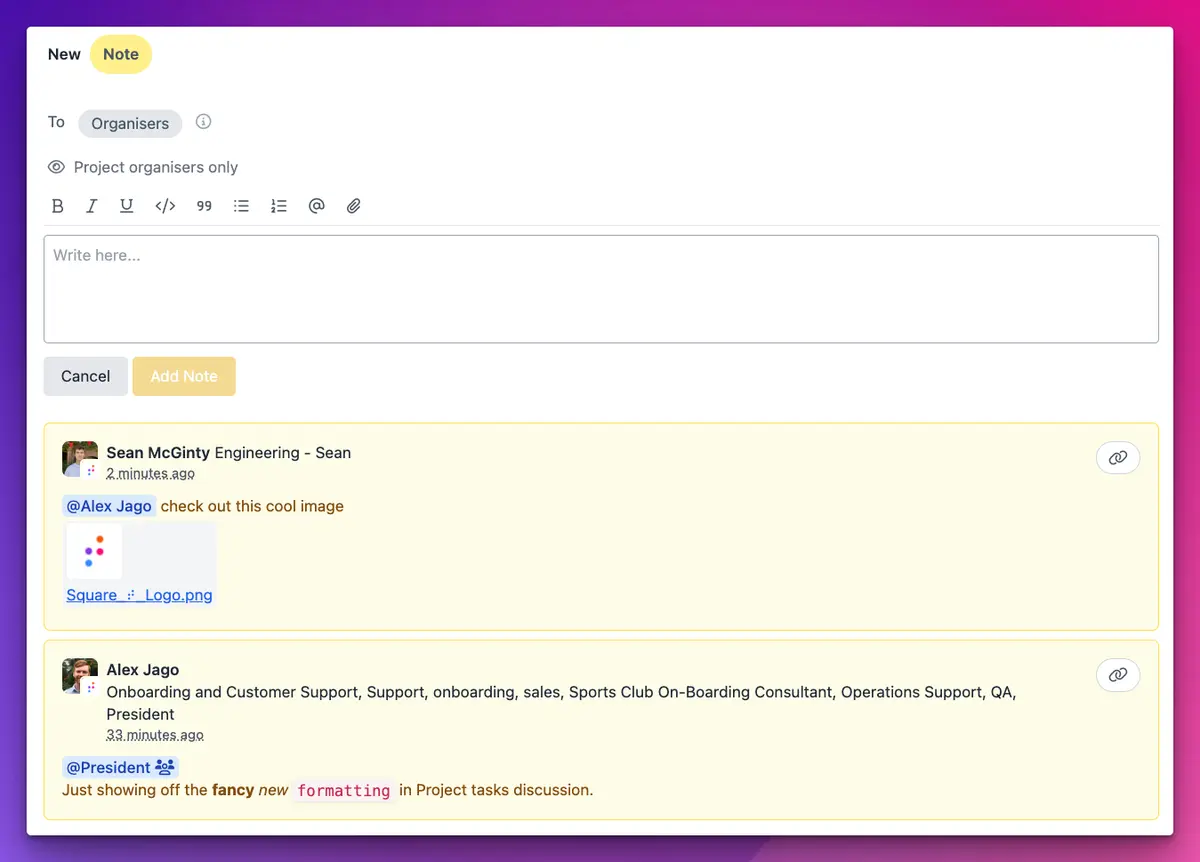
In June we rebuilt the Discussion tab on Project tasks around a proper editor. You can mention people and roles, attach images and videos, and send a link to a single message. It feels a lot less like leaving sticky notes and a lot more like an actual conversation.
Who can use project discussions?
Projects are part of TidyConnect, so discussions are available to peak bodies and their connected organisations. If your club is part of a connected project, you’ll see the new editor on that project’s tasks automatically. There’s nothing to switch on.
How do I mention someone in a project task?
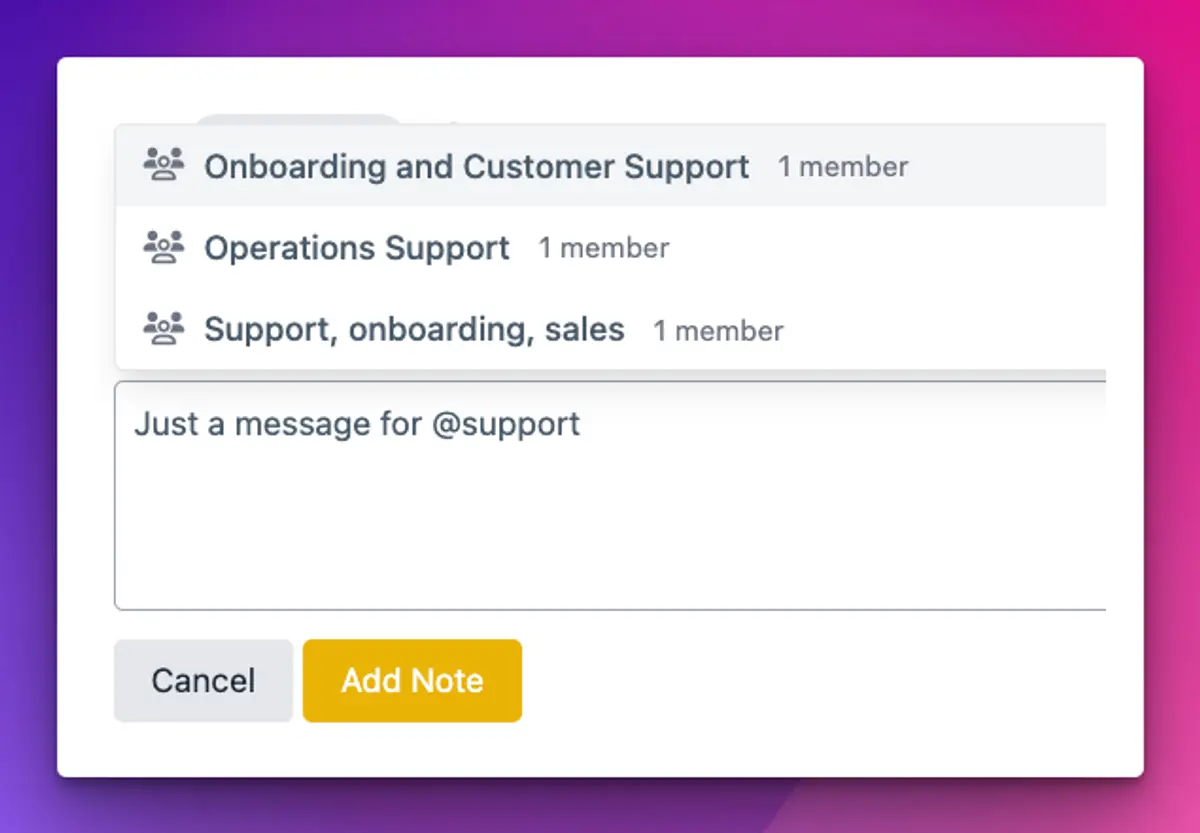
Type @ in the composer, or click the @ button in the toolbar, then start typing a name or a role. A menu shows matching members (person icon) and roles (people icon). Pick one with the arrow keys and Enter, or just click it.
Mentioning a role is the useful one for committees. You don’t need to remember who the treasurer is this year, you mention @Treasurer and it reaches whoever holds the role. Hover any mention and you get a small card with the person’s photo, organisation and roles, or for a role, how many people hold it.
In a connected project you can also mention members and roles from the connected organisations, not just your own. People from another organisation are labelled with their organisation’s name in the menu, so you don’t accidentally ping the wrong Sarah.
Do people get notified when they’re mentioned?
Yes, twice. Anyone you mention gets an in-app notification saying you mentioned them in the Discussions tab of that task, and an email that quotes the message so they have the context without logging in first. The email links straight back to the task.
That means a mention can replace the separate “can you look at this” email. One place, one question.
Who can see a message?
When you start a message you choose its type. A Note is internal and only visible to the project’s managers. It’s the default. In connected projects you can also post a Message, which goes to a participating organisation and is visible to the project’s managers and that organisation’s admins. The composer shows a short reminder of who will see what you’re writing, which is the kind of thing you want to check before you comment on a club’s late paperwork.
How to use it
- Open Projects, open a project, then open the task.
- Click Discussion to expand the thread.
- Write in the composer. Use the toolbar for bold, italics, underline, inline code, quotes and lists, or type the usual Markdown shortcuts (
**bold**,-for a list). - Type @ to mention a person or role.
- Attach an image or video with the paperclip, by dragging it onto the composer, or by pasting from your clipboard.
- Click Add to post.
The support article on discussions in projects covers every button.
Can I attach images and videos?
Yes, up to 10 MB per file. Screenshots of a form that won’t load, a photo of the clubhouse noticeboard, a short screen recording: all fine. Attachments appear inline in the message and are kept in your organisation’s Archive under Projects, where you can browse them. Files you uploaded but never posted are tidied away automatically, so abandoned drafts don’t fill your storage.
How do I point someone to one message in a long thread?
Hover over the message and click the copy-link button in its top right corner. Paste the link wherever you like. When someone opens it, the discussion scrolls to that message and highlights it briefly. Handy when a thread has run to thirty replies and the decision is somewhere in the middle.
Anything it doesn’t do?
You can’t post an empty message, and you’ll be asked to wait if a file is still uploading. Videos and images are the supported attachment types, so a PDF of the minutes still belongs in Storage. And discussions are for project tasks only; this release doesn’t change notes elsewhere in TidyHQ.
See how tasks and projects fit together, or the rest of June’s changes in the changelog.
Header image: Landscape (study for composition XII) by Theo van Doesburg, via WikiArt

Don't miss these

Sharing policies and files from a peak body to every affiliated club
Peak bodies can share Storage folders with their affiliated clubs, read-only. Folders can now hold links to documents hosted elsewhere, and clubs see shared folders in their sidebar even if they have never added the Storage app.

The new Xero integration splits Stripe payouts by category
Our rebuilt Xero integration is now self-serve on the Pro plan. Each Stripe payout lands in Xero already split across your accounts, so the treasurer can see how much was memberships and how much was the trivia night.

Filter and sort your club's transactions, for the treasurer
Transactions in Finances now has proper filters and sorting. Find every unreconciled canteen deposit, one family's payments or last month's refunds, and export exactly that list to CSV.