

Table of contents
Key takeaways
- Since November 2025, TidyHQ supports passkeys, which let you sign in with your fingerprint, face, device PIN or a hardware security key instead of a password.
- TidyHQ also lets you sign in with a one-time code sent to your email, found under "Try Another Way" on the sign-in screen.
- You can add, rename and delete passkeys from the Passkeys section of your TidyHQ Account Settings at accounts.tidyhq.com/account/edit.
- A passkey is saved in your device's password manager, so it can be used on your other devices that share that password manager.
- Existing TidyHQ accounts that are prompted to create a passkey can choose Skip, which defers the prompt for two weeks at a time.
The club treasurer is at the kitchen table on a Sunday night, trying to reconcile last week’s registration payments before the committee meets. She types her password. Wrong. She tries the one with the exclamation mark on the end. Also wrong. Twenty minutes later she has reset it, written the new one on a sticky note, and forgotten what she opened the laptop for.
TidyHQ now has a better way in. Since late November 2025 you can sign in with a passkey, which means your fingerprint, your face, your phone’s screen lock or a hardware security key. And if you would rather not bother with any of that, you can sign in with a one-time code sent to your email.
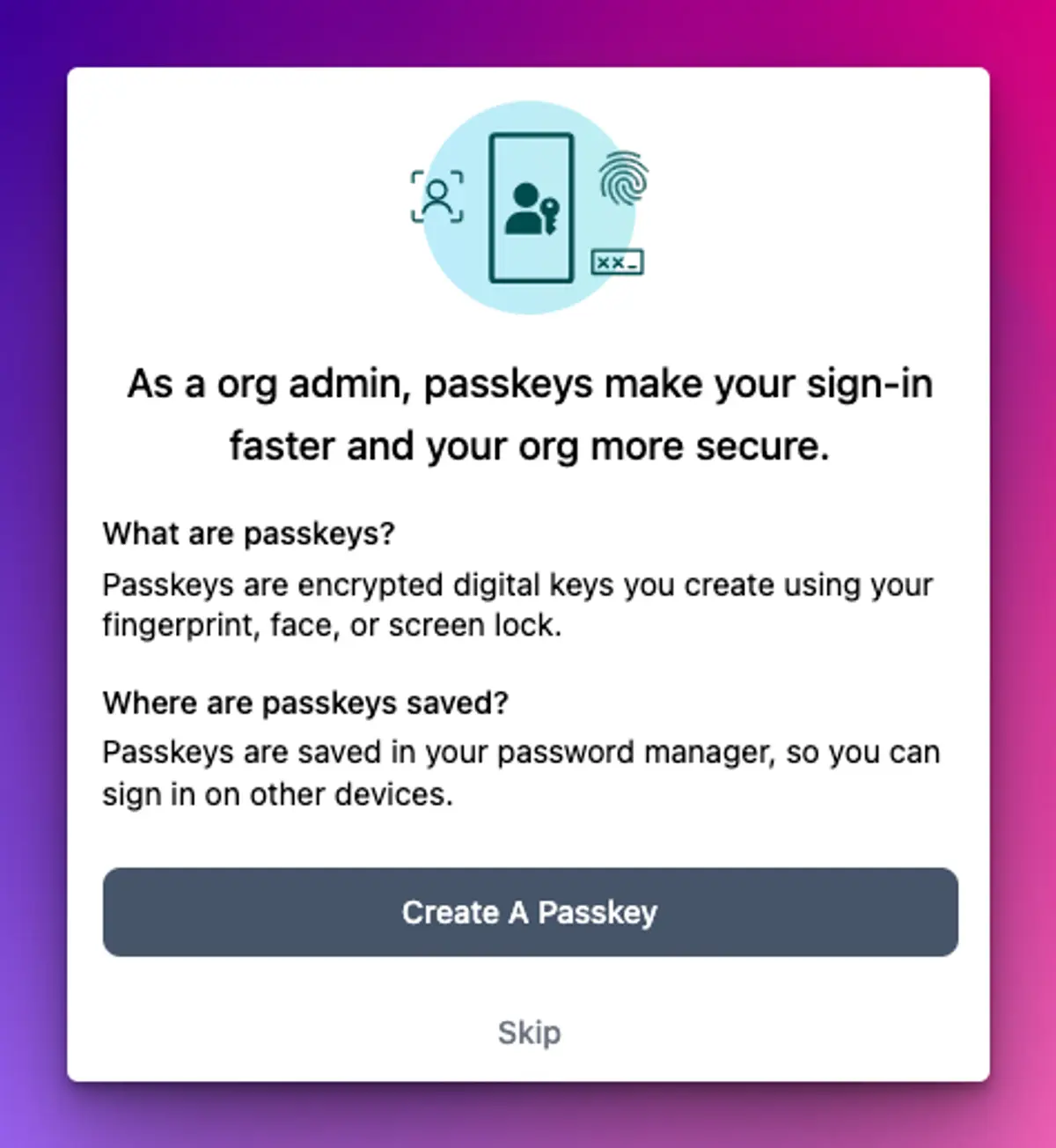
What is a passkey, in plain terms?
A passkey is a digital key your device creates and keeps for you. You use it with the same fingerprint, face or PIN that already gets you into your phone or laptop. There is nothing to remember and nothing to type.
It is also much harder to steal. A passkey only works on the site it was made for, so a convincing fake email saying “your TidyHQ account needs attention” cannot talk you into handing it over. One step gives you the protection of two, which matters more than people think when the account in question can see every member’s contact details and your club’s payment history.
Passkeys are saved in your password manager (the one built into your phone or computer, or a third-party one if it supports passkeys). That means a passkey made on your phone can usually be used on your laptop too, if both share the same password manager.
How do I set up a passkey for TidyHQ?
Most people will be offered one the next time they sign in. If you want to do it yourself:
- Sign in to TidyHQ the way you normally do.
- Open your TidyHQ Account Settings at accounts.tidyhq.com/account/edit and find the Passkeys section.
- Click Add Passkey. TidyHQ signs you out and asks you to sign in again.
- Sign in with your password or an email code, then click Create A Passkey at the prompt.
- Confirm with your fingerprint, face or PIN when your device asks. If you use a password manager app, it may ask where to save the passkey.
That is it. Next time, you enter your email and your device does the rest. The TidyHQ passkeys help article has screenshots of each step.
Can I use passkeys on more than one device?
Yes. You can add a passkey on each device you use, and the Passkeys section of your Account Settings lists them all, with where each one was saved and when it was last used.
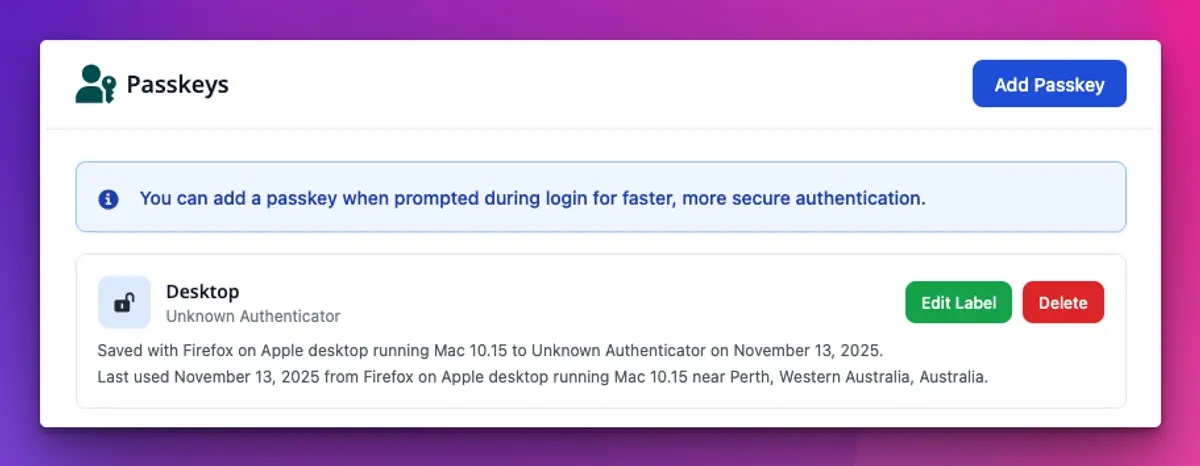
Use Edit Label to give each one a name you will recognise (“Work laptop”, “My iPhone”). Use Delete to remove one you no longer use, such as the old tablet you handed to the canteen roster. Deleting it in TidyHQ does not always delete it from your device’s password manager, so tidy that up separately if you want it gone completely.
If your club uses one shared login for something like the gate or the canteen, each person can add their own passkey to that account and label it with their name. Then you can see whose passkey was used, and remove one person’s access without changing anything for everyone else.
What if I don’t want a passkey?
You don’t have to have one. On the sign-in screen, click Try Another Way and choose to have a code sent to your email. Type in the code and you are signed in.

If you already have a password, that still works for now: Try Another Way, then Enter your password. TidyHQ is moving away from passwords, though, so a passkey or email code is the better habit to get into. The email code is also your backup if you are ever on a new device that does not have your passkey yet.
If you are an existing user and the passkey prompt appears, you can click Skip. It will leave you alone for two weeks and then ask again.
Things to know before you tell the committee
This is for everyone with a TidyHQ login, whether you are an administrator or a member signing in to renew their membership. It is part of your personal TidyHQ account, not a club setting, so there is nothing for an admin to switch on.
The email code goes to your login email. That is the address you sign in with, which is not always the same as the contact email your club sends newsletters and invoices to. If a code never arrives, check you are using the right address, then check your junk folder.
Passkeys need a reasonably recent phone, tablet or computer. If yours is too old, the email code works on anything with an inbox.
And a note for handover season. A passkey belongs to a person’s own TidyHQ account, not to a committee role. When a new secretary takes over after the AGM, they sign in with their own account and their own passkey, and the outgoing secretary’s admin access is removed as usual. Nobody needs to pass a password across the table any more.
If a committee member asks why the sign-in screen looks different, the changelog has every sign-in change in one place.
Header image: Suprematic compositional elements by Kazimir Malevich, via WikiArt

Don't miss these

Sharing policies and files from a peak body to every affiliated club
Peak bodies can share Storage folders with their affiliated clubs, read-only. Folders can now hold links to documents hosted elsewhere, and clubs see shared folders in their sidebar even if they have never added the Storage app.

The new Xero integration splits Stripe payouts by category
Our rebuilt Xero integration is now self-serve on the Pro plan. Each Stripe payout lands in Xero already split across your accounts, so the treasurer can see how much was memberships and how much was the trivia night.

Filter and sort your club's transactions, for the treasurer
Transactions in Finances now has proper filters and sorting. Find every unreconciled canteen deposit, one family's payments or last month's refunds, and export exactly that list to CSV.