

Table of contents
Key takeaways
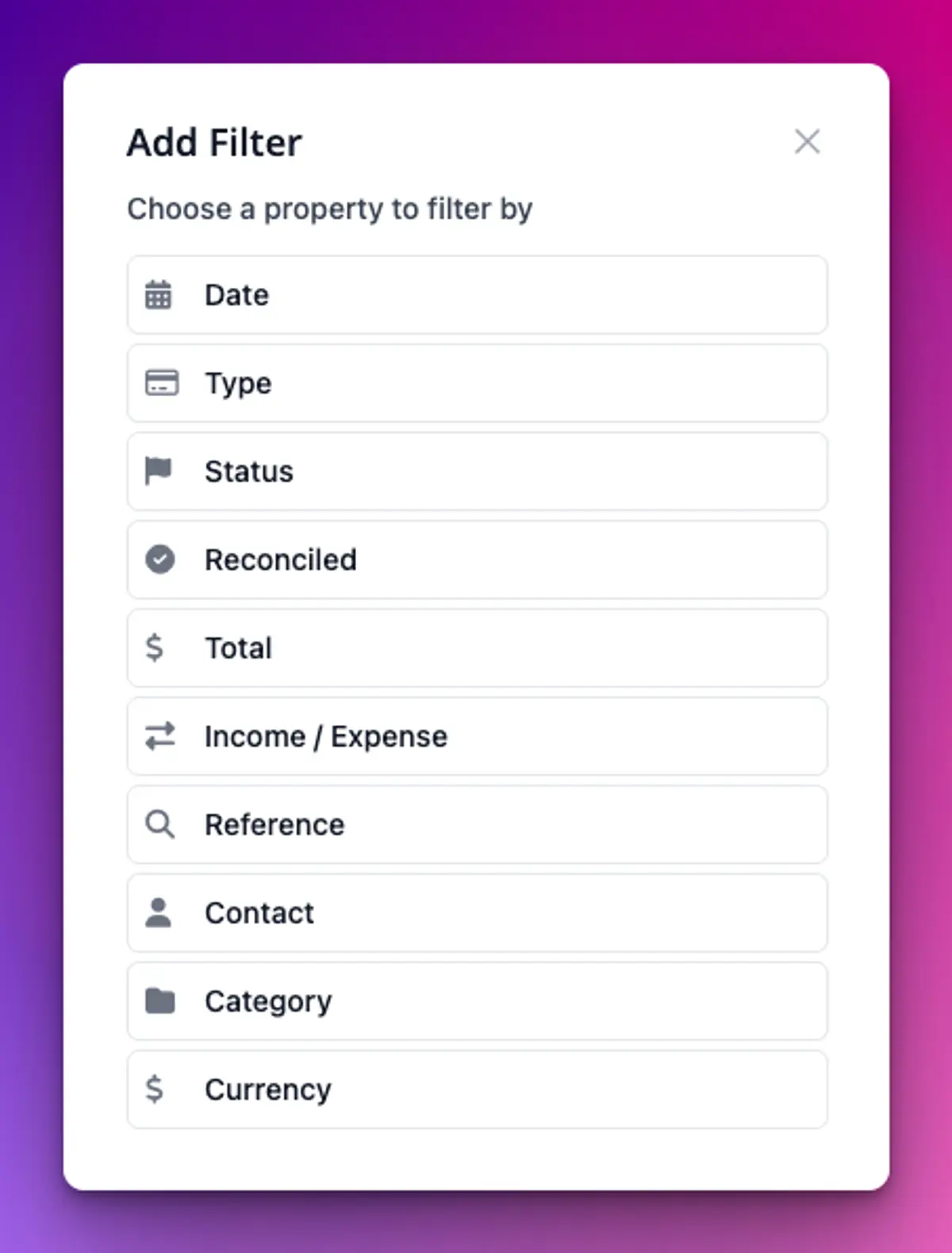
- Since September 2026, the Transactions list in TidyHQ Finances can be filtered by date, type, status, reconciled, total, income or expense, reference, contact, category and currency.
- Contact and category filters on TidyHQ Transactions can either include or exclude the chosen contacts or categories, and several can be chosen at once.
- TidyHQ Transactions can be sorted by date, type, status, total, contact, reference or reconciled, and sorting and page numbers stay in step with the active filters.
- A CSV export from TidyHQ Transactions keeps the same filters as the list on screen, and very large exports are generated in the background and emailed.
- TidyHQ does not import bank statements; reconciliation works by marking individual transactions as reconciled against the bank statement.
It is two weeks before the AGM. The auditor wants the year’s figures, the bank statement shows a $340 cash deposit nobody can explain, and a parent has emailed asking for proof of every payment they made this season because their employer reimburses sport. You open Finances, then Transactions, and there are 1,400 rows.
Until September, the best you could do was pick a date range and scroll, or export everything and wrestle it in a spreadsheet. Transactions now has proper filters and sorting, and the export follows whatever you have filtered.
How do I filter transactions in TidyHQ?
Go to Finances, then Transactions, and click Add Filter. You can filter by:
- Date
- Type
- Status (paid or refunded)
- Reconciled
- Total (between two amounts, above or below)
- Income / Expense
- Reference
- Contact
- Category
- Currency
Filters stack, so Category set to Canteen, Type set to cash and Reconciled set to unreconciled narrows 1,400 rows down to the handful you actually need to chase. Contact and Category let you pick several at once, and choose whether to include or exclude them. Excluding is handy for “everything except membership fees” when you want to see what else came in.
Can I sort transactions by amount or contact?
Yes. You can sort by date (oldest or newest first), type, status, total (lowest or highest first), contact, reference or reconciled. Sorting and paging stay in step with your filters, so page three of a filtered list is page three of that list, not of everything.
Totals now show the currency where it matters, which helps if your club takes payments in more than one.
How do I reconcile transactions against the bank statement?
TidyHQ reconciliation works one transaction at a time: you mark each TidyHQ transaction as reconciled once you have matched it to a line on your bank statement. Select Reconciled from the transaction’s Actions. TidyHQ does not import bank statement files, so there is no automatic matching.
The new filters make that job a lot shorter. Filter Reconciled to show only unreconciled transactions, sort by Total, and put the statement next to the screen. The $340 mystery deposit is either there, or you now know for certain it was never recorded. For Stripe payments, the transaction shows the gateway fee and the net amount banked, which is the number that will appear on your statement.
Does the CSV export keep my filters?
Yes. Export CSV gives you the filtered list, not the whole ledger. That parent asking for proof of payments? Filter by their contact and this season’s dates, export, attach, done. If an export is very large (more than 2,500 transactions), TidyHQ builds it in the background and emails it to you instead, which can take up to an hour.
The same Export CSV button now appears on every Finances tab, so you are not hunting for it.
How to use it
- Go to Finances, then Transactions.
- Set the date range you care about, for example your financial year.
- Click Add Filter, pick a property, set the condition and apply. Add more filters as needed.
- Choose how to sort, for example by total, highest first.
- Click Export CSV to download exactly what is on screen.
Use Clear all to start again. It clears your filters but no longer quietly hides an active date range, which caught a few people out before.
The basics of the Transactions list, including date ranges, are in the Transactions support article.
What it does not do
This is a better list, not an accounting package. There is no bank feed, no statement import and no automatic matching. If your club needs those, they belong in your accounting software. For clubs using Xero with Stripe, the Xero integration can post Stripe payouts across your categories so reconciliation happens in Xero. For everyone else, Finances now makes the treasurer’s pre-AGM evening noticeably shorter.
The rest of September’s changes are on the changelog.
Header image: Composition with Red, Blue and Yellow by Piet Mondrian, via WikiArt

Don't miss these

Sharing policies and files from a peak body to every affiliated club
Peak bodies can share Storage folders with their affiliated clubs, read-only. Folders can now hold links to documents hosted elsewhere, and clubs see shared folders in their sidebar even if they have never added the Storage app.

The new Xero integration splits Stripe payouts by category
Our rebuilt Xero integration is now self-serve on the Pro plan. Each Stripe payout lands in Xero already split across your accounts, so the treasurer can see how much was memberships and how much was the trivia night.

Event Analytics shows attendance and ticket sales across every event
Events now has an Analytics view that adds up attendance, ticket sales and revenue across all your events, plus repeat buyers and scan-in rates. You can also filter contacts by who bought a ticket versus who actually attended.