

Table of contents
Key takeaways
- Since late August 2026, TidyHQ Communicate lets admins save reusable Email Snippets, each with a name, a subject line and a body.
- A TidyHQ Email Snippet can be inserted into a new email, a reply or a forward using the Insert Snippet picker, and it lands wherever the cursor is.
- When a snippet is inserted and the email subject is still blank, TidyHQ fills in the snippet's subject; if a subject is already there, it is left alone.
- TidyHQ Email Snippets support merge tags such as a contact's first name and custom fields in the body, but merge tags do not work in the subject line.
- Snippets are created under Communicate, then New, then New Email Snippet, and managed under Communicate, then Email Snippets, where they can be edited, previewed and deleted in bulk.
Every club has the emails it writes over and over. The Thursday call-out for canteen volunteers. The reply to “how do I register my daughter?” that goes out forty times in February. The note to lapsed members that starts politely and gets firmer by the third send. Most secretaries keep these in a Word document or dig through Sent to find last week’s version, copy it, then fix the name they forgot to change.
In late August we added Email Snippets to Communicate. You save the text once, with a subject line, and drop it into any email, reply or forward when you need it.
What is an email snippet in TidyHQ?
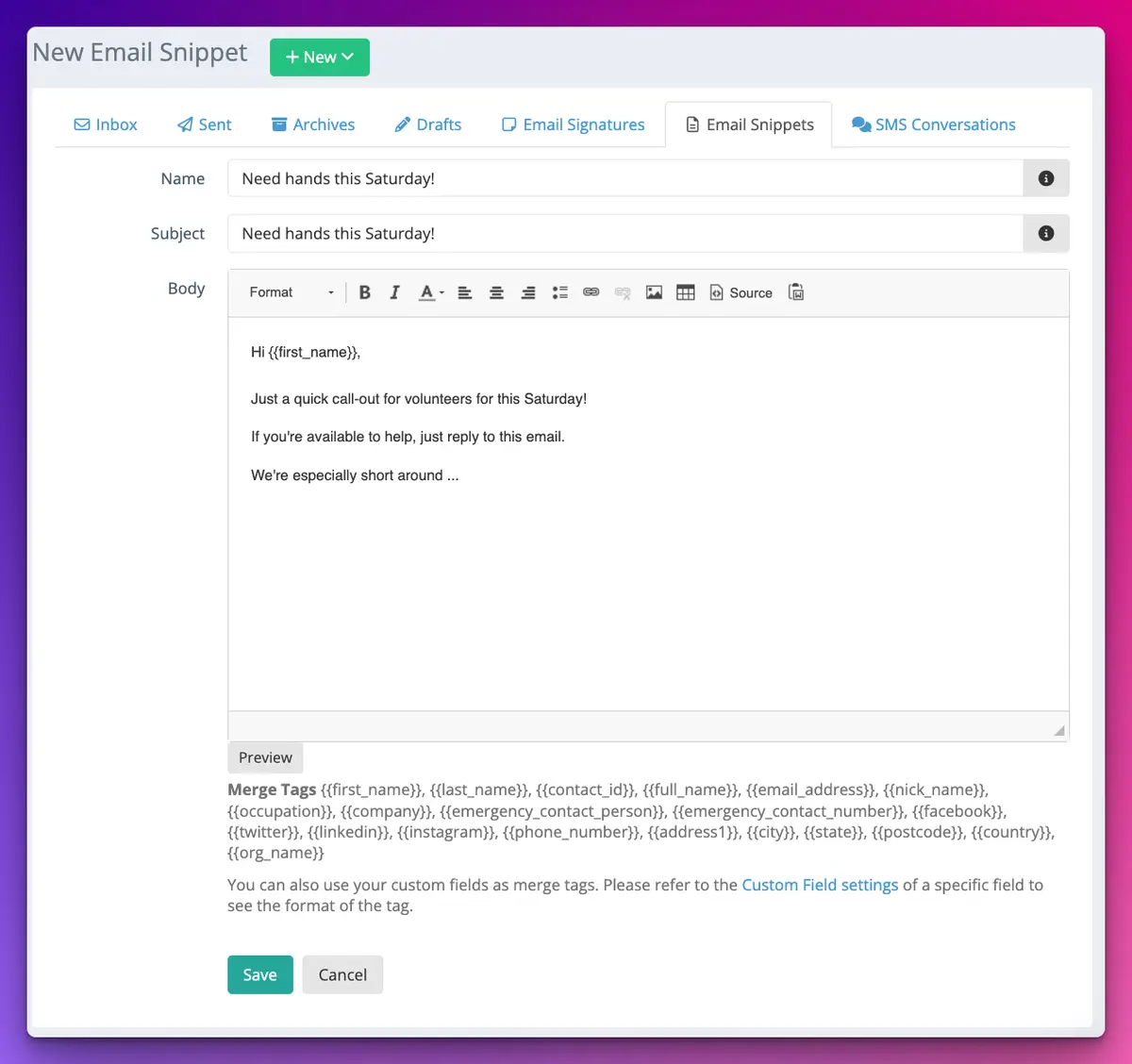
An email snippet is a saved block of email content with three parts: a name, a subject and a body. The name is just for you, so you can find it in a list. The subject and body are what go into the email.
The body uses the same editor as a normal email, so you can format text, add images and switch to the HTML editor if that is your thing. Snippets belong to your organisation, so whoever is on the admin team that week can use the same wording. The list shows who created each one, which helps when three people have saved slightly different versions of the AGM notice.
Can I personalise a snippet with each member’s name?
Yes. Snippets support merge tags in the body, so “Hi {{first_name}}” becomes “Hi Priya” when the email is sent. The usual tags are there (first name, full name, your organisation’s name and so on), and you can also use your own custom fields as merge tags. The custom field settings show the exact tag for each field.
One limit: merge tags work in the body only, not in the subject line. So “Your renewal, {{first_name}}” in a snippet subject will not work. Keep the personal touch in the opening line.
In replies and forwards, merge tags in the snippet you insert are filled in as normal. The quoted email history underneath your reply is left exactly as it was.
What happens to the subject line when I insert a snippet?
If the subject is blank, the snippet’s subject fills it in. If you have already typed a subject, TidyHQ leaves yours alone. That means you can insert two snippets into one email (say, a membership reminder and your standard “how to reach the committee” block) without the second one overwriting the subject from the first.
How to set it up
- Go to Communicate, click New, then choose New Email Snippet.
- Give it a Name you will recognise later, such as “Canteen roster call-out”.
- Enter a Subject. This only fills in when the email’s subject is blank.
- Write the Body. Add merge tags, images or formatting as you like.
- Click Save.
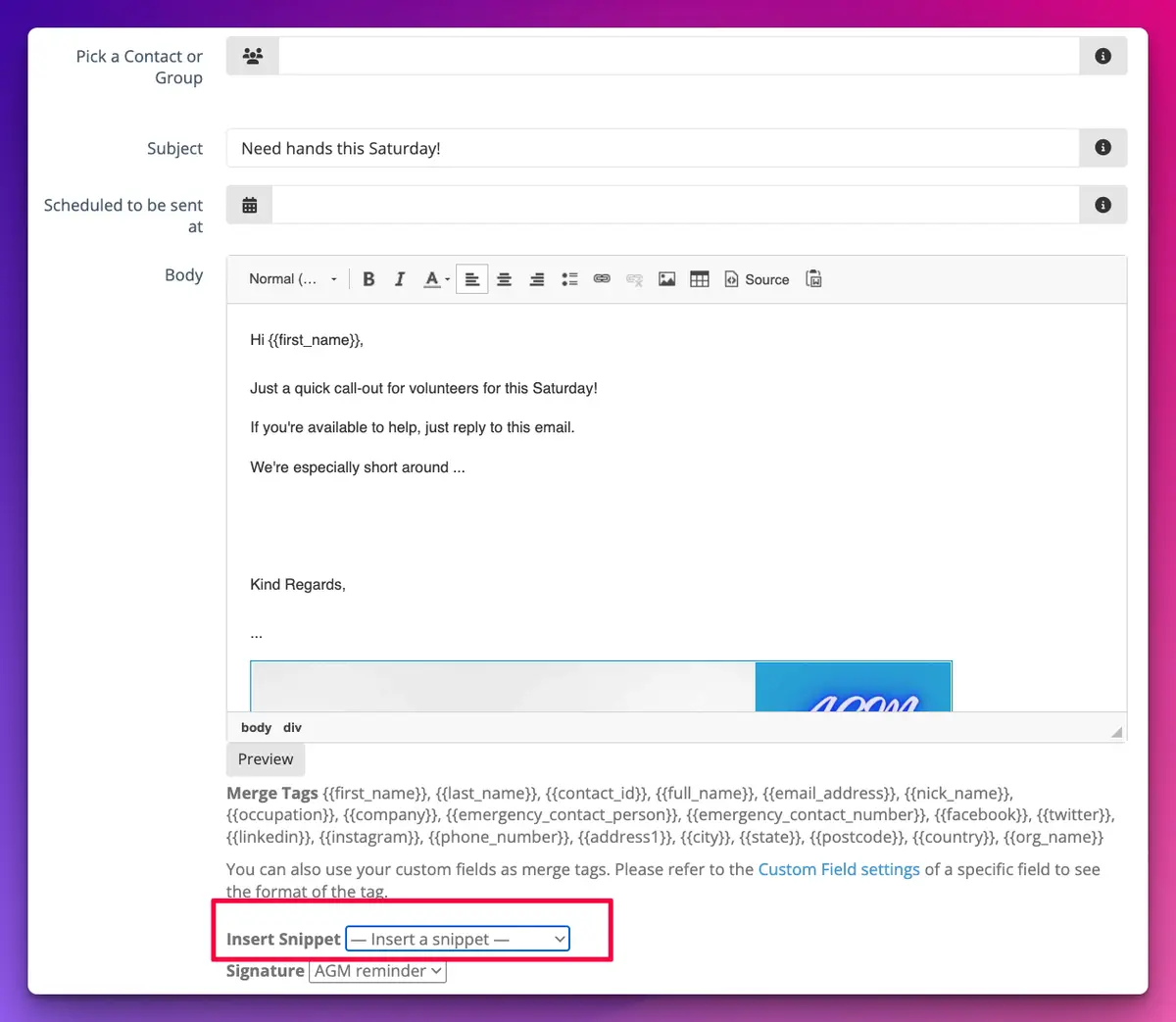
To use one, start a new email or open a reply or forward. Below the list of merge tags you will see Insert Snippet. Pick the snippet and its body goes in wherever your cursor is. You can insert more than one, and you can edit the inserted text before you send, same as anything else you have typed.
The full walkthrough, including previewing merge tags, is in the Email Snippets support article.
How do I keep my snippets tidy?
All your snippets live under Communicate, then Email Snippets. Click a name to edit it. You can preview a snippet to see how the merge tags will render, delete one from its detail view, or tick several and choose Delete selected to clear out a season’s worth at once.
A small habit that helps: name snippets by when you use them, not what they say. “Pre-season: registration open” and “Mid-season: unpaid fees” are easier to find in March than “Email 3”.
Snippets and signatures
Snippets pair well with Email Signatures, which have been in Communicate for a while. Put the reusable content in a snippet and your sign-off in a signature, and the only thing left to type is the bit that is actually new this week.
This is a small feature. It will not write your newsletter for you. It does mean the answer to “where do I find the uniform order form?” is two clicks away instead of somewhere in your Sent folder from last April. You can see what else Communicate does on the communications page, and it pairs naturally with the refreshed contacts table for picking who gets what.
Everything else we shipped in late August is on the changelog.
Header image: Aghtana III by Frank Stella, via WikiArt

Don't miss these

Sharing policies and files from a peak body to every affiliated club
Peak bodies can share Storage folders with their affiliated clubs, read-only. Folders can now hold links to documents hosted elsewhere, and clubs see shared folders in their sidebar even if they have never added the Storage app.

The new Xero integration splits Stripe payouts by category
Our rebuilt Xero integration is now self-serve on the Pro plan. Each Stripe payout lands in Xero already split across your accounts, so the treasurer can see how much was memberships and how much was the trivia night.

Filter and sort your club's transactions, for the treasurer
Transactions in Finances now has proper filters and sorting. Find every unreconciled canteen deposit, one family's payments or last month's refunds, and export exactly that list to CSV.