

Table of contents
Key takeaways
- Since December 2025, TidyHQ's rebuilt Meetings experience lets several administrators edit a meeting's agenda and minutes at the same time, with changes syncing live.
- The new Meetings experience saves automatically as you type, so minutes are not lost if a laptop closes or a browser tab crashes.
- Action items recorded in TidyHQ minutes stay in draft until someone clicks Finalise Meeting, which locks the minutes and sends the tasks to the people assigned.
- As of January 2026 the new Meetings experience is a beta, turned on per meeting with the "Convert this meeting to the new experience (beta)!" link, and converting cannot be undone without contacting TidyHQ support.
- A TidyHQ meeting can only be converted to the new experience before its minutes have been started, and meeting templates cannot be converted.
It is 9.40pm on a Tuesday and the committee meeting has run long again. The secretary is typing as fast as she can while the treasurer explains the canteen float. The chair is making his own notes on a notepad, and he will email them to her tomorrow so she can merge them into the “real” minutes. Two people doing one job, and neither version will be quite right.
TidyHQ’s rebuilt Meetings experience fixes the worst of this. Since December 2025 it has been available to every organisation as a beta. Several people can write the same agenda and the same minutes at once, it saves as you type, and each agenda item has its own notes.
Can two people take minutes at the same time?
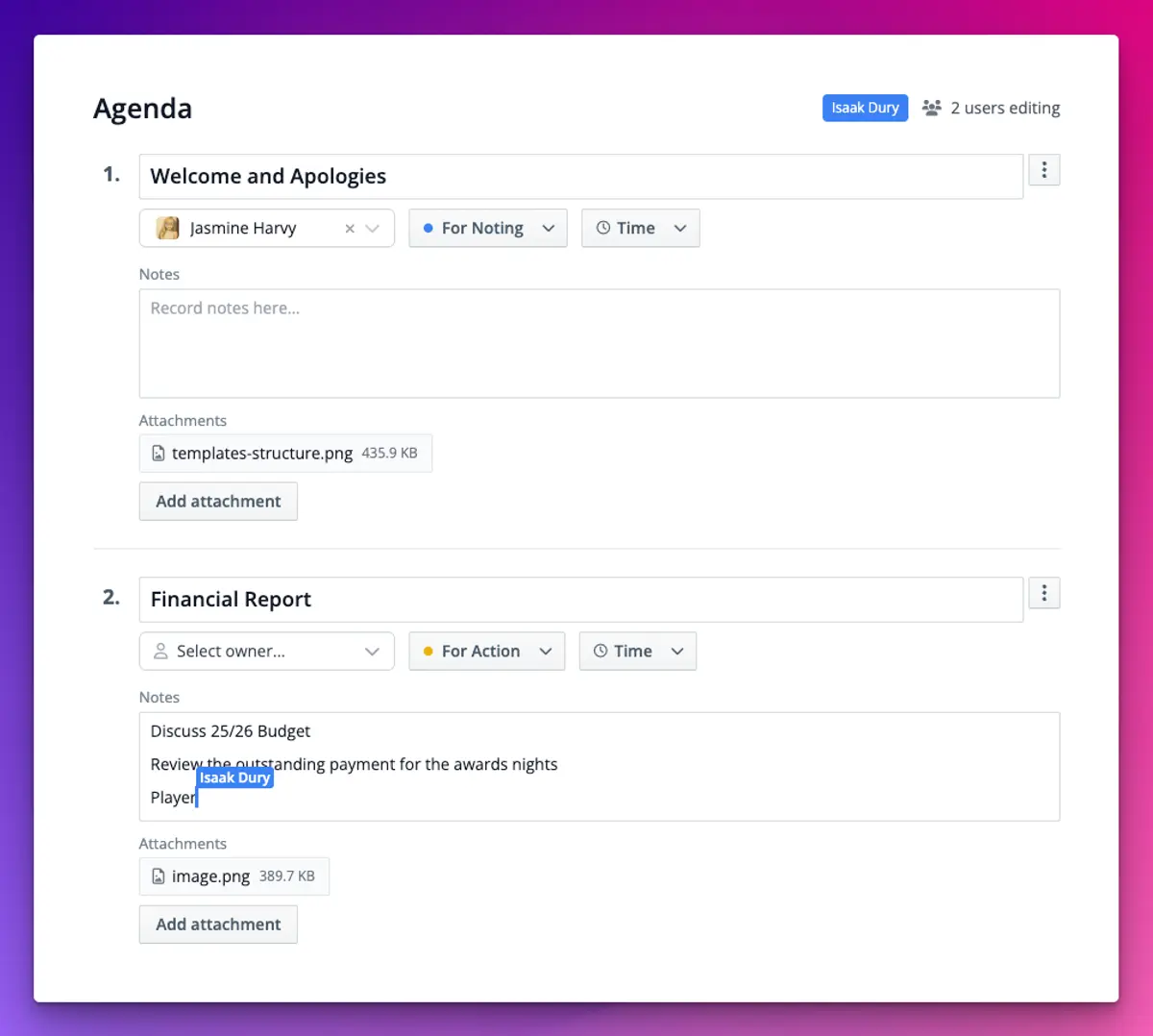
Yes. In the new experience, several administrators can have the minutes open together and see each other’s changes as they happen.
A small indicator at the top shows how many people are editing, and each person’s cursor is labelled with their name, so you can see the chair adding a decision under item 4 while you are still finishing item 3. Nobody overwrites anybody. There is no “who has the latest version” conversation afterwards, because there is only one version.
The same goes for the agenda before the meeting. The president can add her report as an attachment on her item while the secretary is sorting the order of business, and the treasurer can drop a note under Financial Report without waiting for either of them.
What happens if my laptop dies halfway through?
Your minutes are safe. The new experience saves automatically every few seconds as you type, so there is no Save button to forget and no lost hour when the battery runs out in the clubrooms.
How do action items work now?
You record action items against the agenda item they belong to, and they stay in draft until the meeting is finalised. That is deliberate: a half-discussed idea from 9.15pm should not land in someone’s inbox as a task before the committee has actually agreed to it.
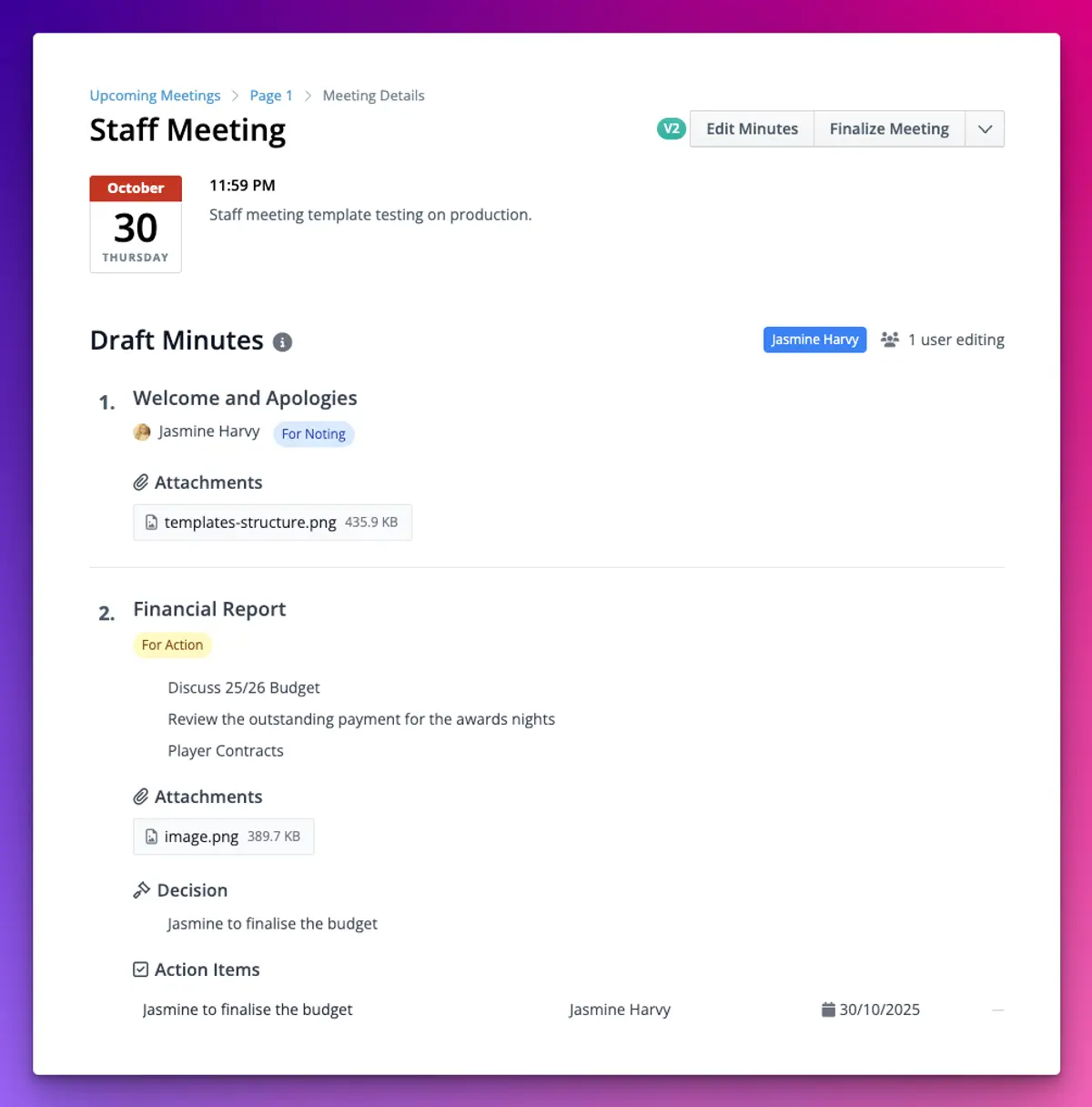
When you click Finalise Meeting, three things happen. The minutes lock so they cannot be changed. Any draft action items become real tasks and the people assigned are notified. And anyone else still editing loses edit access (anything already auto-saved is kept). After that you can use Share Minutes to send them out.
If you need to make a correction later, a Meeting Administrator can reopen a locked meeting for editing.
How to set it up
You switch a meeting to the new experience one meeting at a time.
- Go to Meetings and create a new meeting, or open one you have already created.

- Click Convert this meeting to the new experience (beta)! and confirm.
- Build the agenda. For each item you can set an owner, a type (For Noting, For Discussion or For Action), a time allocation and attachments, and add notes in the box that says “Record notes here”.
- On the night, go to Meetings > Upcoming Meetings, click View Details, then Start Meeting. Anyone else who opens the minutes can type alongside you.
- To add an action item, click inside the notes for that agenda item first. The Actions and Decisions panel appears once you are in the notes box. Type the action, click Assign, pick the person and set a due date.
- When you are done, click Finalise Meeting.
Converted meetings show a small V2 label, so you can tell them apart in your list. The collaborative meetings help article has the full walkthrough and a video.
What should I know before converting?
This is a beta, and there are a few things to be clear on before you use it for the AGM.
Converting is permanent. If you really need a meeting back in the old format you have to contact TidyHQ support, so try it on an ordinary committee meeting first.
You can only convert a meeting before its minutes have been started. If you have already begun minuting a meeting in the old format, finish it there. Meeting templates cannot be converted either.
Tasks do not appear in the Tasks list until the meeting is finalised. If someone says “I never got my action item”, check whether the meeting was finalised before you check anything else.
And collaboration is for the people who administer your meetings in TidyHQ. Members you invite still receive the agenda and minutes the way they always have; they do not type into them.
Meetings, including the new experience, are part of every TidyHQ plan. More on how agendas, minutes and tasks fit together is on the Meetings page, and changes to the beta will show up in the changelog.
Header image: Graphic Tectonic by Josef Albers, via WikiArt

Don't miss these

Sharing policies and files from a peak body to every affiliated club
Peak bodies can share Storage folders with their affiliated clubs, read-only. Folders can now hold links to documents hosted elsewhere, and clubs see shared folders in their sidebar even if they have never added the Storage app.

The new Xero integration splits Stripe payouts by category
Our rebuilt Xero integration is now self-serve on the Pro plan. Each Stripe payout lands in Xero already split across your accounts, so the treasurer can see how much was memberships and how much was the trivia night.

Filter and sort your club's transactions, for the treasurer
Transactions in Finances now has proper filters and sorting. Find every unreconciled canteen deposit, one family's payments or last month's refunds, and export exactly that list to CSV.